


Overview
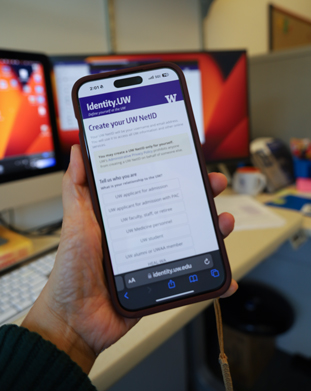
A UW NetID (University of Washington Network Identification) is an account that you create to gain online access to certain University of Washington services, including:
- Off-campus access to library resources designated "UW restricted"
- The Bothell Campus Parking Portal which allows you to purchase online parking permits.
- Access to the joint-campus emergency notification system.
Tutorials
- Start with Kodiak Account. You must have an active Kodiak Account to get a UW NetID.
- Students — Your Kodiak Account is automatically created and sent to the email address you used for application to the college.
- Faculty and Staff — Your supervisor gives you your account information when you begin work at Cascadia. See instructions if you need to change or reset your password.
- Go to Create Your UW NetID
-
Choose the Sign in to Cascadia College link. This is an important step, please see screenshot below for location of link. Selecting other links will result in an error/failure.
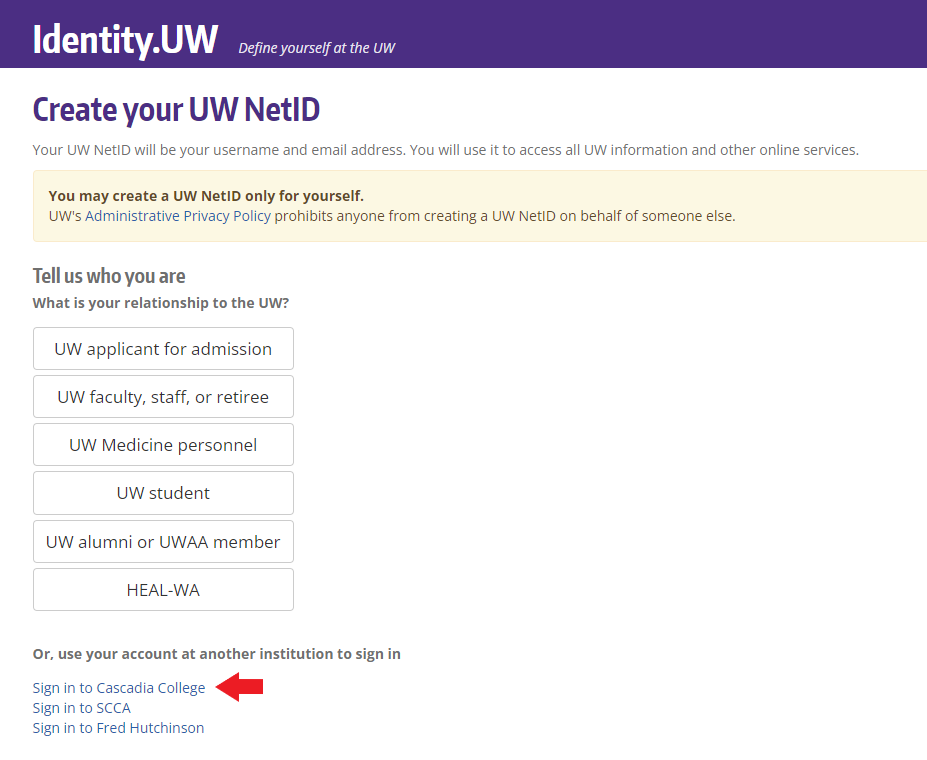
Create Your UW NetID page - Choose Your NetID
- When you are creating your account, the system will suggest NetIDs that haven't already been taken. Over 60,000 UW NetIDs are already in use Once you choose a NetID user name, you cannot change it. If you transfer to the University of Washington, your NetID will become your email address.
-
At the Cascadia login page, enter your Kodiak Account email address and password, then select "Sign In"
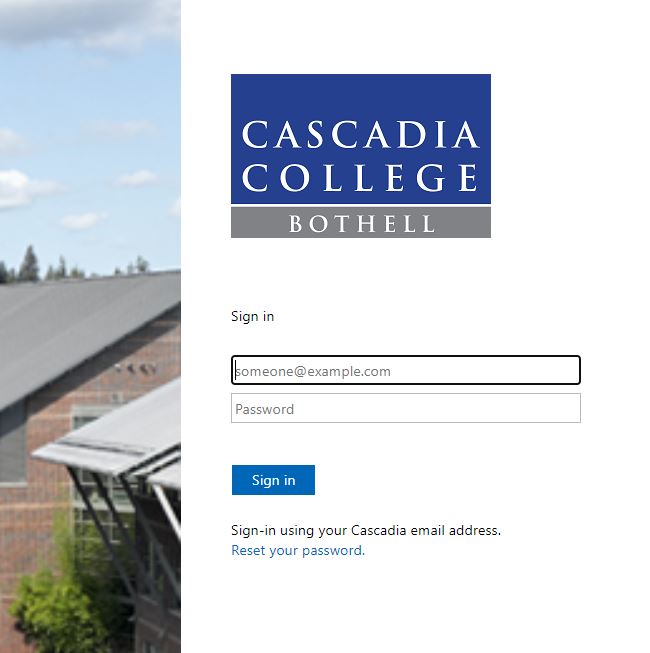
Cascadia login page - Follow the onscreen instructions to create a UW NetID and password
- Go to UW IT Connect
- Under the section for Reset or Change Your Password, select UW NetID Password Change
- Log in with your UW NetID and your current password
- Enter your current password and new password where prompted and select "Set Password"
Note: You must know your UW NetID
- Go to UW IT Connect.
- Under the section for Reset or Change Your Password, select on UW NetID Recovery. Step by step instructions are also on UW IT Connect.
- Go to Find Your UW NetID
-
Choose the Sign in to Cascadia College link. This is an important step, please see screenshot below for location of link. Selecting other links will result in an error/failure.
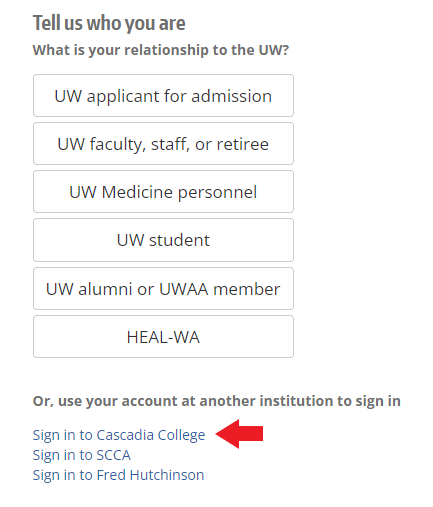
Find Your UW NetID -
At the Cascadia login page, enter your Kodiak Account email address and password, then select "Sign In"
Cascadia login page - Your UW NetID will be displayed
As of Fall 2025, all UW NetIDs are required to have recovery options. This can be via either phone number or email.
To set a recovery phone number:
- Open a web browser and go to: UW NetID Account Recovery Settings
- Click Add mobile number.
- Type the phone number you want to use for account recovery. The phone number must be able to receive text messages.
- Click Send Code. A verification code is sent to your phone immediately. Keep this web page open while you wait for the code.
- Type the verification code in the requested field on the page. Click Verify.
- Your recovery phone number is set
To set a recovery email:
- Open a web browser and go to: UW NetID Account Recovery Settings
- Click Add Recovery Email.
- Type the email address you want to use for account recovery.
- Click Send Email. A Verification message is emailed to you immediately.
- Follow the instructions in the verification message.
- Your recovery email address is set.
Click here for more information about account recovery or for further assistance.
Get Help with Problems
- Contact the IT Service Desk
- Go to UW IT Connect. Note: Some of the features discussed on this UW information page are not available to Cascadia students, faculty, and staff.